
How to auto apply on LinkedIn (free, step by step)
This guide takes you from download to your first supervised run with Magic Apply - Jobs, a free open-source tool that runs on your own computer. You do not edit any code.
Before you start
You need about ten minutes and these things:
- A computer with Google Chrome installed. The tool drives a Chrome window.
- Your own LinkedIn account. The tool works through it; it never creates accounts for you.
- Your resume as a PDF saved on the same computer.
- An understanding that automating LinkedIn is against LinkedIn’s rules and can put your account at risk. Read the safety guide first.
Magic Apply - Jobs is a beta. It has been tested against realistic mock sites, not every employer, so plan to watch your first few runs.
Step 1: Get the tool
Windows, the easy way: download MagicApply.exe from the Releases page and double-click it. It is a single file: no installer and no Python. Windows may say it protected your PC because the file is not code-signed. Click More info, then Run anyway. You can compare the file’s SHA-256 with the one in the release notes first.
Any system: download the project as a ZIP from GitHub, unzip it, and double-click start.bat on Windows, start.command on macOS or start.sh on Linux. On Windows the launcher installs Python and Chrome if they are missing, so the first run takes a few minutes. The macOS and Linux launchers are included but less tested.
Step 2: Open the control panel
Your browser opens the control panel by itself. The address, such as http://127.0.0.1:5000, is shown in the launcher window, and the panel can only be reached from your own computer. If you saved a backup file last time, click Restore from backup and every field fills back in.
Step 3: Fill in your profile
Open the Profile tab and set your first and last name, Email for applications, Phone number and city. Set Default resume path to your resume PDF, for example C:\Users\you\Documents\resume.pdf. The tool will not apply on company sites until your name, email and phone are set, and it never sends template placeholders to an employer.
Years of experience, desired salary, current salary and notice period start out as “not set”, and the tool never types a number you did not give it. A form that asks for one of them is left for you, or for the AI if you turned it on. Fill them in if you want those applications to go through on their own.
In the Account tab, your LinkedIn email and password are optional: leave them blank and sign in by hand in the Chrome window when it asks. To use Google sign-in on company sites, enter your account in Google account for company sites. The tool never types your Google password.
Step 4: Choose what to search for
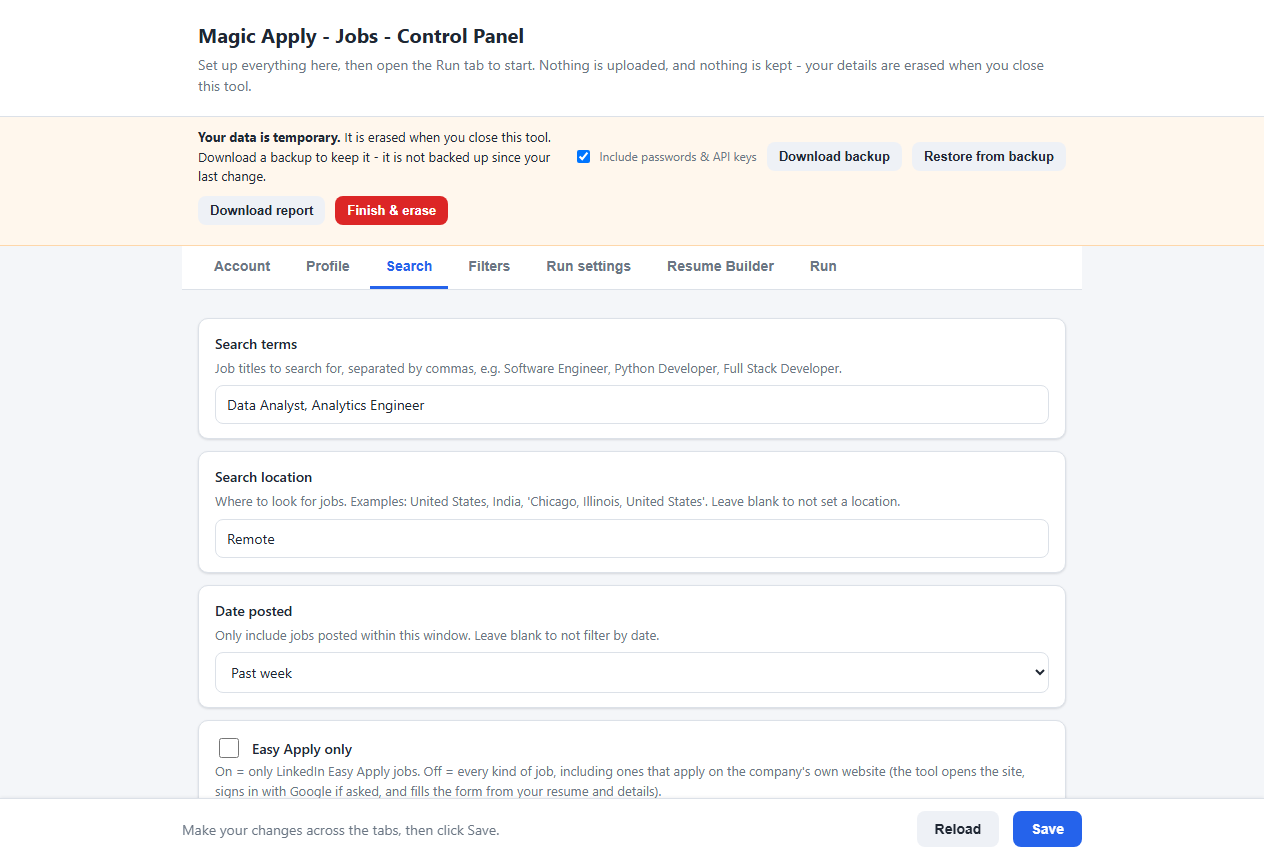
In the Search tab, enter Search terms (job titles separated by commas), a Search location and how recent the jobs should be under Date posted. Leave Easy Apply only off to include jobs that apply on the company’s own website, or turn it on to stay with Easy Apply.
Step 5: Choose your safety settings
Open Run settings and check three things:
- Max applications per day is 40 by default. Lower it if you want to be more careful; -1 turns the cap off.
- Pause before submitting is on by default, so the tool stops before each submission for you to review it. Leave it on for your first runs.
- Pause between clicks (seconds) sets how long the tool waits between actions. A higher number is slower and gentler.
The safety guide explains why these matter. Click Save when you are done: the tool only uses saved settings.
Step 6: Click Start
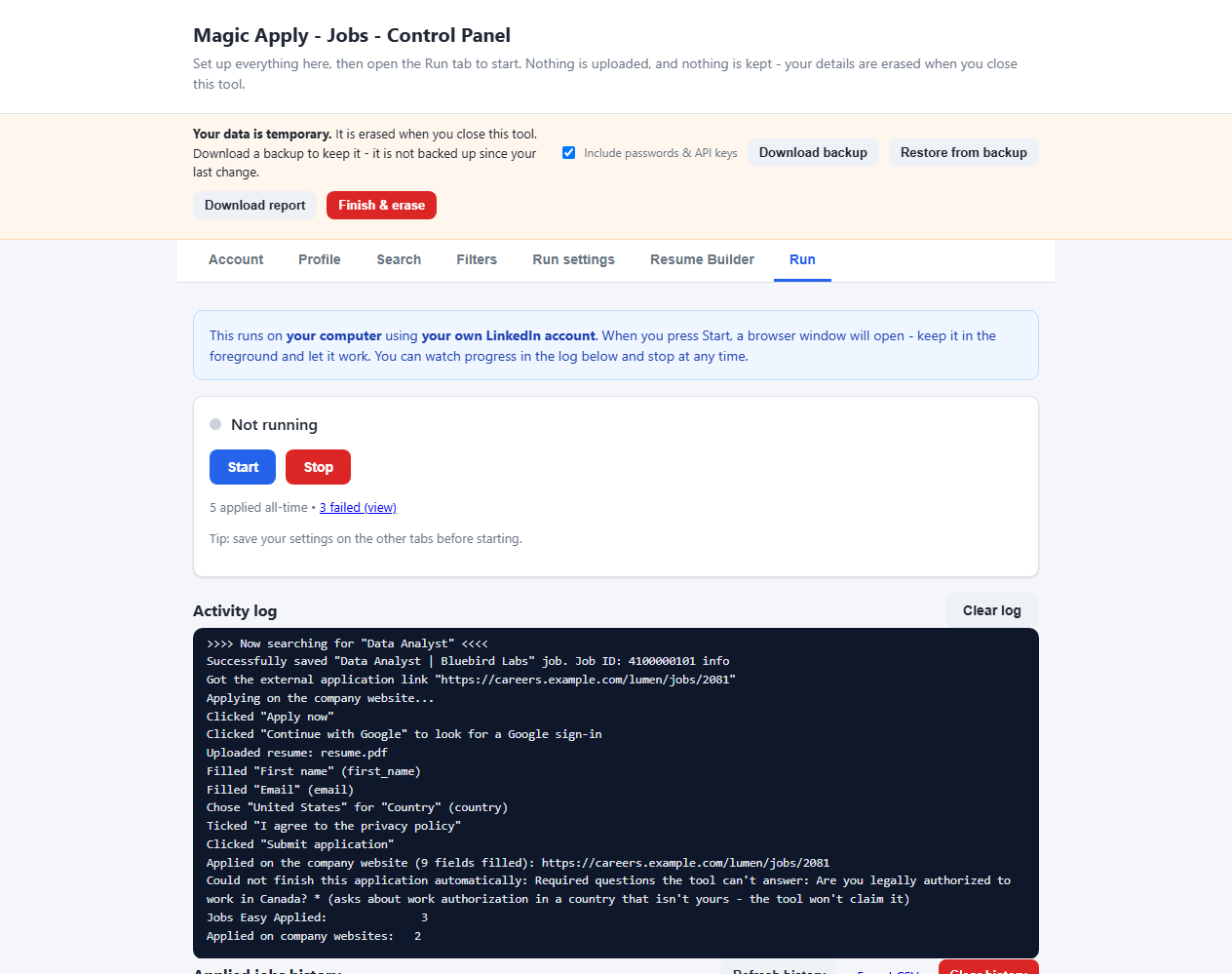
Go to the Run tab and click Start. It shows what it is about to search for, and if you changed a setting without saving it, offers to save it first. A Chrome window opens and begins working. Keep that window in the foreground and watch the Activity log. If LinkedIn or a site asks you to verify you are human, finish that screen yourself; the tool waits and then carries on. Click Stop at any time.
Step 7: Review what happened
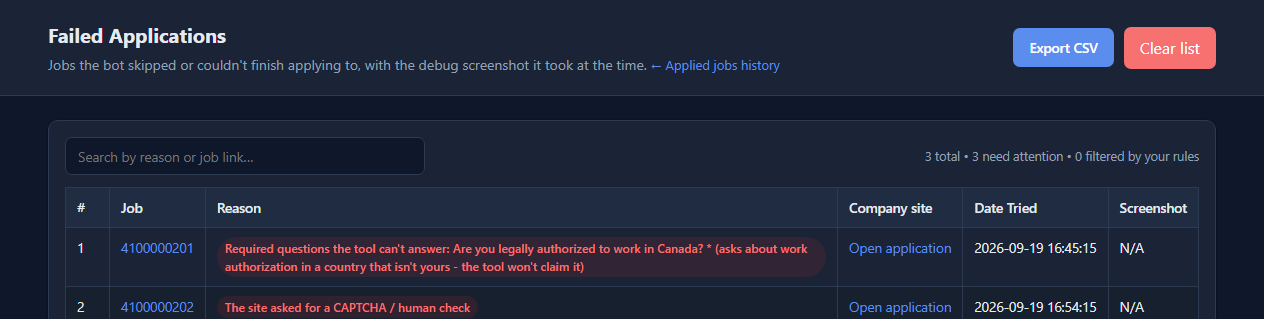
Every job it applied for appears in the Applied jobs list, where you can mark its status as replies arrive. Anything it could not finish goes to the Failed jobs list with a plain reason, a link to the company’s page and a screenshot, so you can finish it by hand.
Step 8: Save a backup and finish
The tool remembers nothing between sessions. Click Download backup if you want your settings and history next time, then Finish & erase. If something went wrong, click Download report first: it saves your recent log and why jobs failed, with your personal details masked, ready to attach to a GitHub issue.
Troubleshooting
- Windows says it protected your PC. Click More info, then Run anyway. The file is not code-signed.
- Chrome does not open, or the driver fails. Make sure Google Chrome is installed and up to date, and leave Manage Chrome driver automatically on in Run settings.
- It asks you to verify you are human. Complete it in the Chrome window. The tool never tries to get past a CAPTCHA.
- Nothing was applied. Your filters may be too narrow, the jobs may already be in your Applied list, or the daily cap may be reached. The Activity log says which.
- LinkedIn says you have reached a limit. See the Easy Apply limit guide.
- Company sites keep failing. Read how the tool handles them; some sites need you.
Ready to try it? The Windows .exe is a single file, and everything is free and open source.
Download the toolFrequently asked questions
Do I need to know how to code?
No. You set everything up in a control panel that opens in your browser and run the tool with a button. There are no code files to edit.
How long does setup take?
A few minutes with the Windows .exe. The launcher's first run can take longer because it installs the tool's packages; after that it starts in seconds. Filling in your profile takes about as long as one job application.
Can I stop it at any time?
Yes. Click Stop in the Run tab. Anything it has already applied for stays recorded in the Applied jobs list for that session, and jobs it could not finish are in the Failed jobs list.
What do I need to run it?
Google Chrome. The Windows .exe needs nothing else. On Windows the start.bat launcher also installs Python and Chrome if they are missing. On macOS and Linux, install Python 3.10 or newer and Chrome first, then double-click the launcher; those two launchers are included but less tested than the Windows ones.